
 Türkçe


Newest
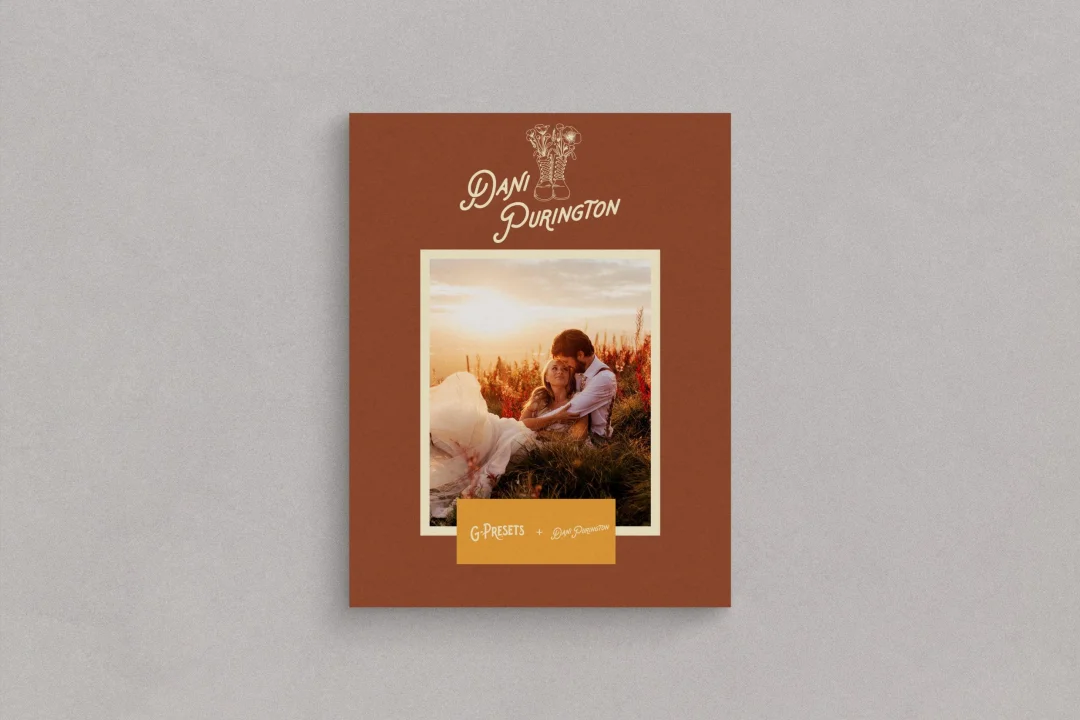
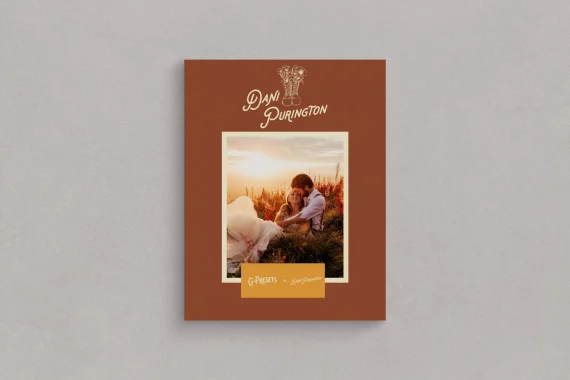
G-Presets Dani Purington Presets - A Collaboration With Dani Purington
Preset Details
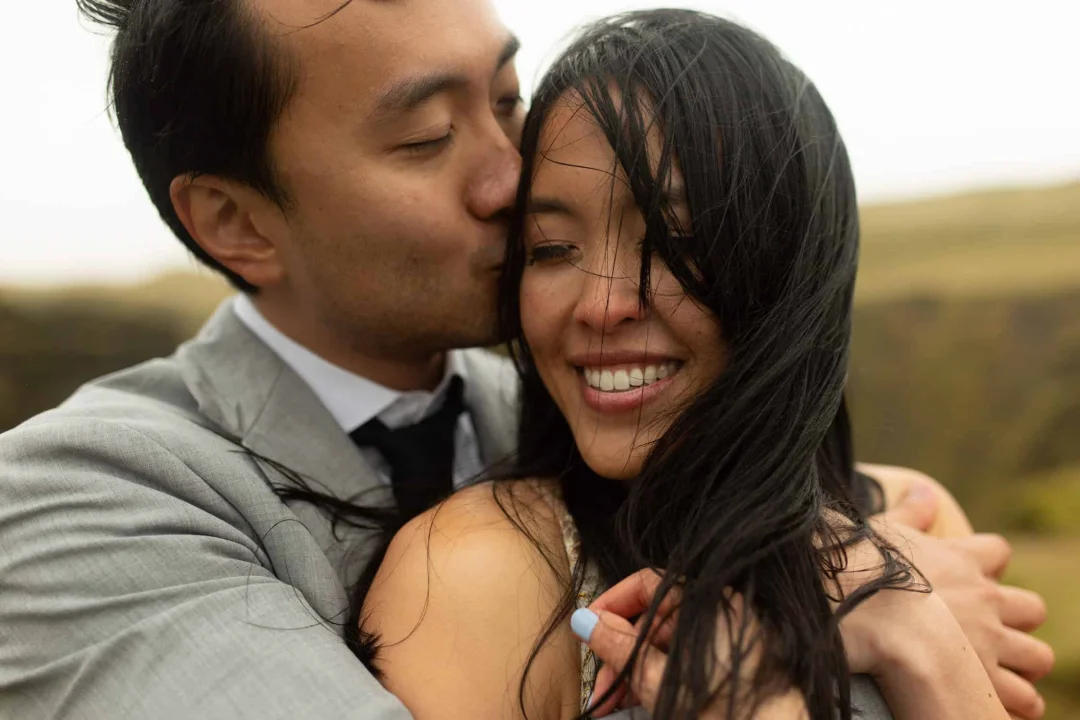
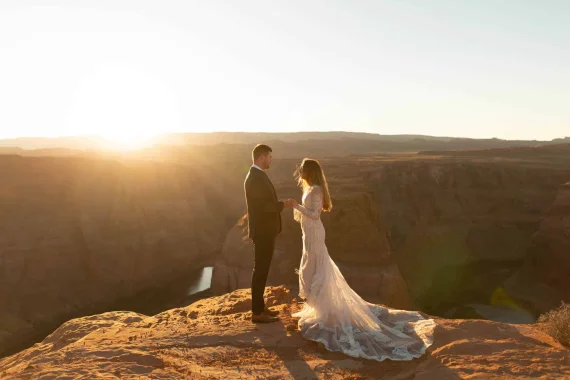
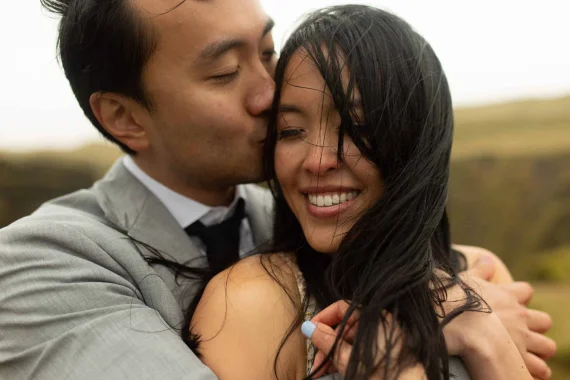
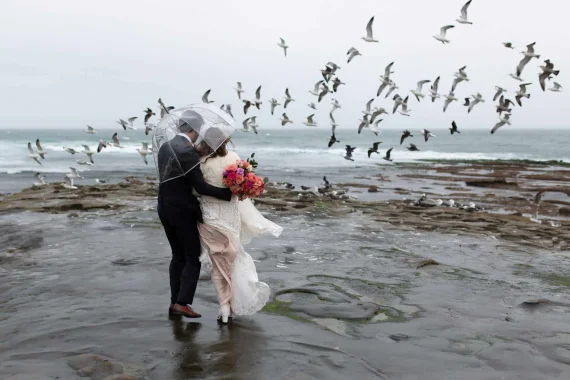
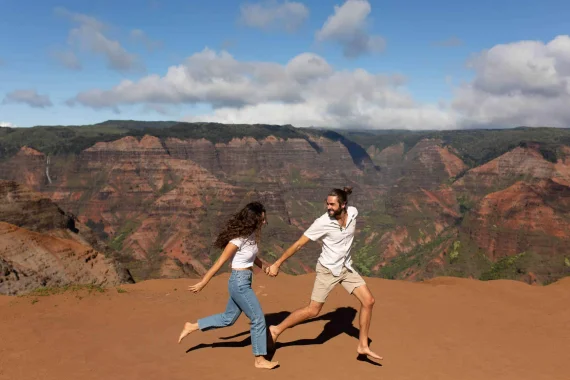
Dani Purington is a champion of the real real. Her elegant use of color and ability to delightfully capture the candid has earned her a sterling reputation while proving to be a timeless palette throughout her entire body work. As a globe trotting elopement photographer her landscapes are constantly changing, and it is precisely these changes that stoke her passion for preserving the gorgeous and unique color stories that each location tells.
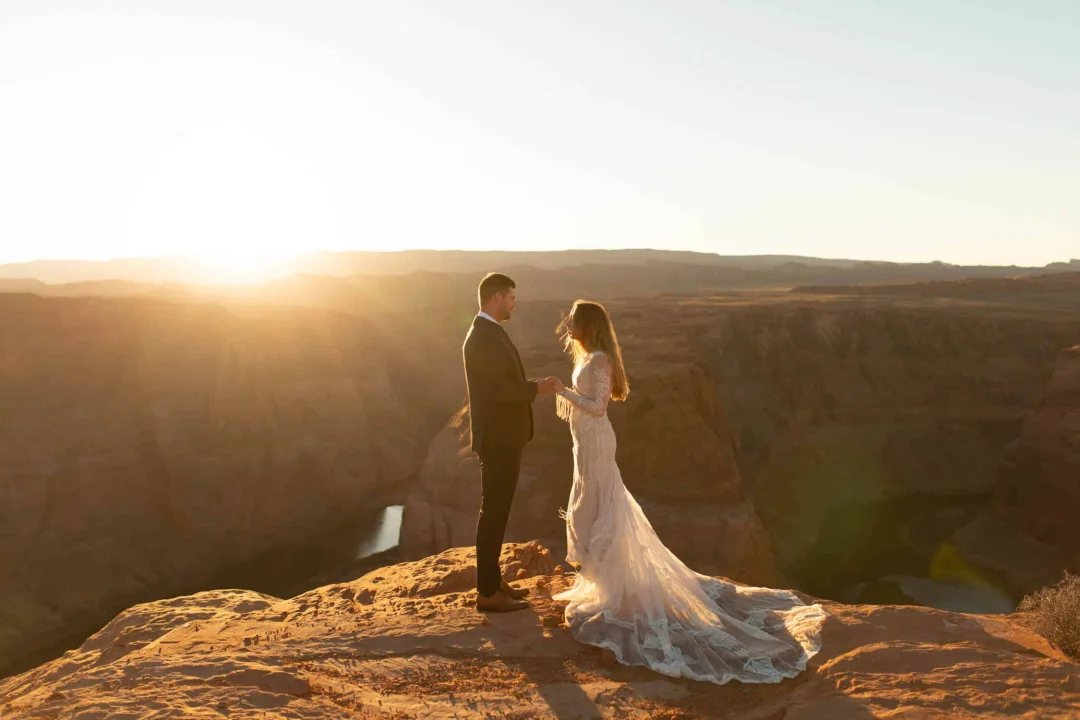
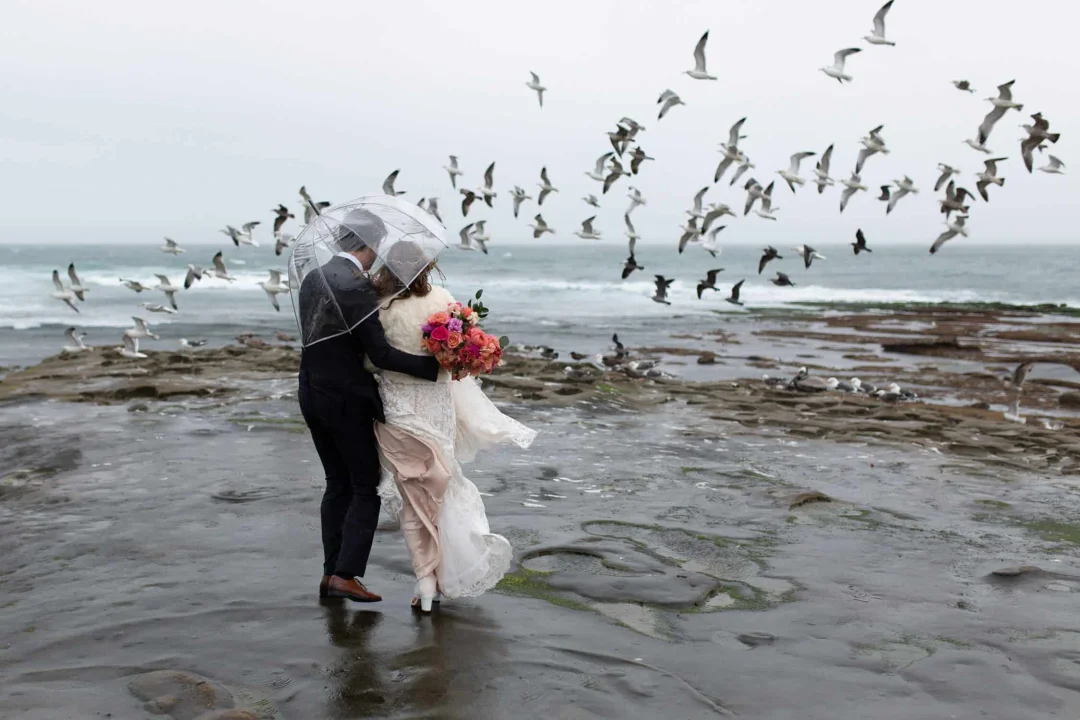
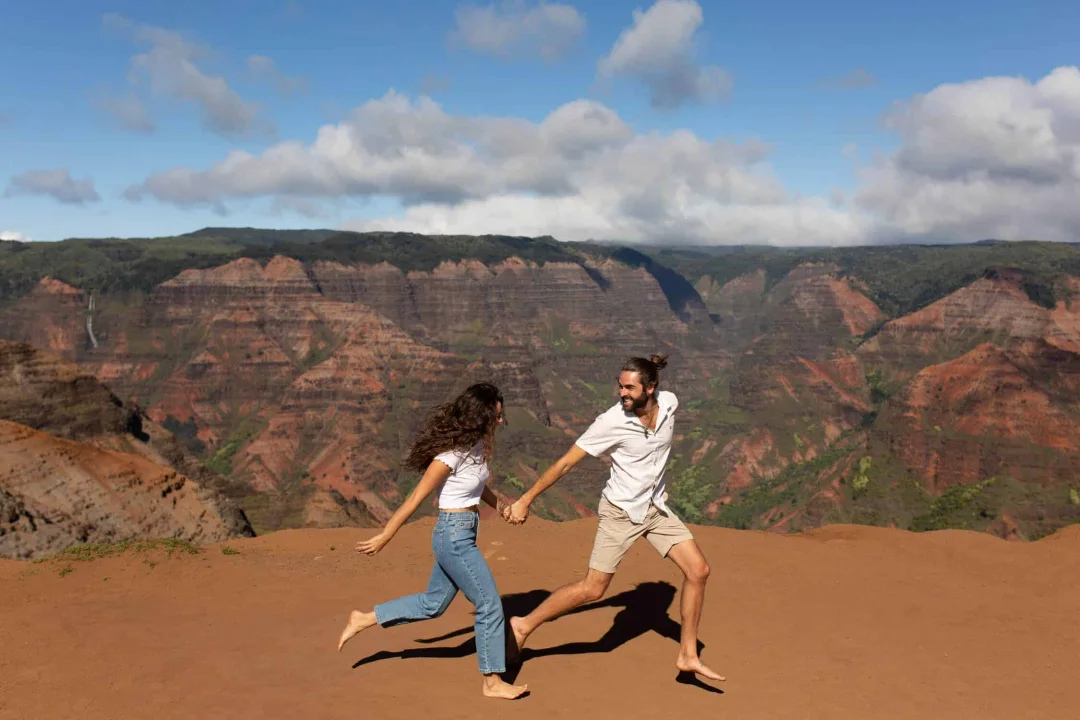
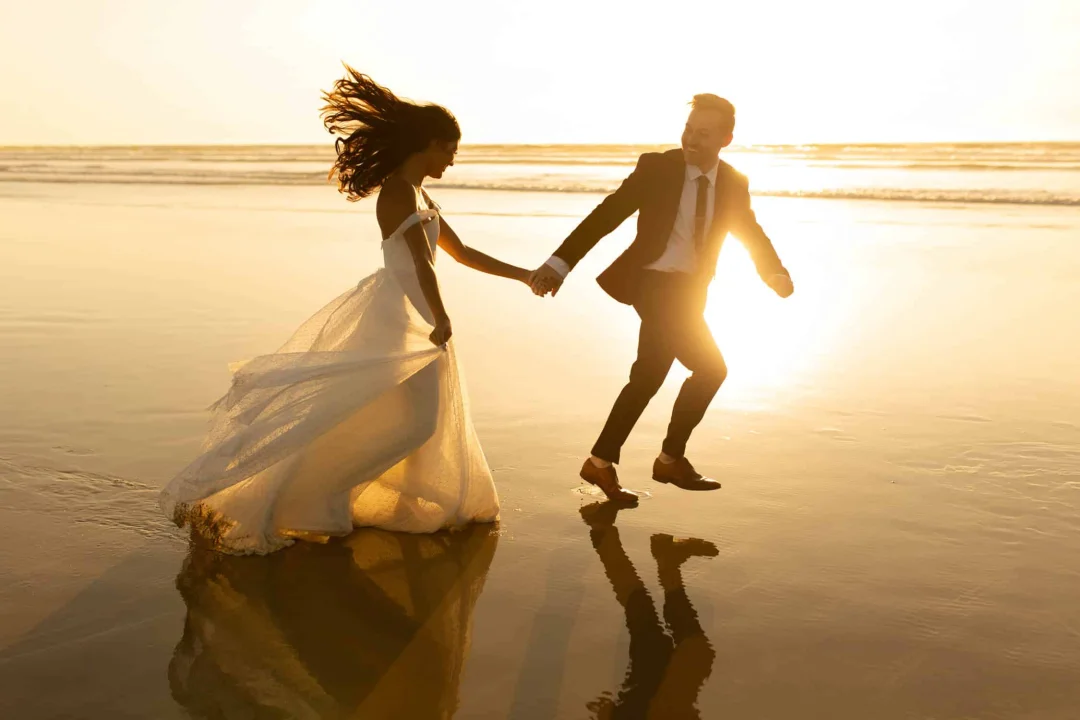
This collection is brimming with active and natural color settings that are intended to serve as a perfect default for you to personalize into your own little power pack of presets. By keeping color the star of the show, you’ll be able to shoot with brilliant confidence in the richest locales you find. Think the starchy red rocks of Moab, verdant green redwood forests bathing in broken light, and crisp golden sunset shots straight off the coast.
Dani Purington Presets consists of 9 color presets built into profiles, and 2 BW presets (please see * below for compatibility).
*These presets ONLY work with Lightroom Classic CC (version 7.5 or later), Lightroom CC (version 1.3 or later), and Adobe Camera Raw (version 10.5 or later). For earlier versions, you MUST update your editing applications to meet the required specifications.
HOW TO INSTALL
LIGHTROOM CLASSIC CC VERSION 7.5 OR LATER (XMP FILES)
- After you have downloaded your presets DO NOT
unzip the file - Open Lightroom and go to the Develop Module
with an image - Click on the + icon in the Preset Panel
Select “Import Presets” - Navigate to the downloaded presets zip file
- Click “Import”
HOW TO INSTALL
LIGHTROOM CLASSIC CC VERSION 1.3 OR LATER
- Open Adobe Lightroom CC
- Select File > Import Profiles and Presets
- Select the downloaded preset folder and click
‘Import’ - Open the photo you would like to edit, click the edit toolbar on the right-hand side of Lightroom and then you’ll find the imported preset when you select the ‘Presets’ button
HOW TO INSTALL
ADOBE CAMERA RAW (VERSION 10.5 OR LATER) FOR MAC (XMP FILES)
- Make sure you're closed out of your Photoshop application
- Unzip the zip file that was downloaded
- On your Desktop Finder click GO
- Hold down the Option key and click Library
- Click through the following folders Application Support>Adobe>Camera Raw>Settings
- Locate the Folder titled Dani Purington Presets
- While holding down the Option key drag the presets into the Settings folder you located
- Now Launch Photoshop with a RAW image and your presets will be located in ACR under the Presets icon
HOW TO INSTALL
ADOBE CAMERA RAW (VERSION 10.3 OR LATER) FOR WINDOWS (XMP FILES)
- Make sure you're closed out of your Photoshop application
- Unzip the zip file that was downloaded
- Go to this file location on your computer C:\Users\[User Name]\AppData\Roaming\Adobe\CameraRaw\Settings
- Locate the folder titled Dani Purington Presets
- Hit Ctrl+C to copy the folder
- Go to the Settings folder you located and hit Ctrl+V to paste the folder
- Now Launch Photoshop with a RAW image and your presets will be located in ACR under the Presets icon