
 Türkçe

Newest
Storezar - The Ultimate Bundle MEGA for Premiere Pro
Preset Details
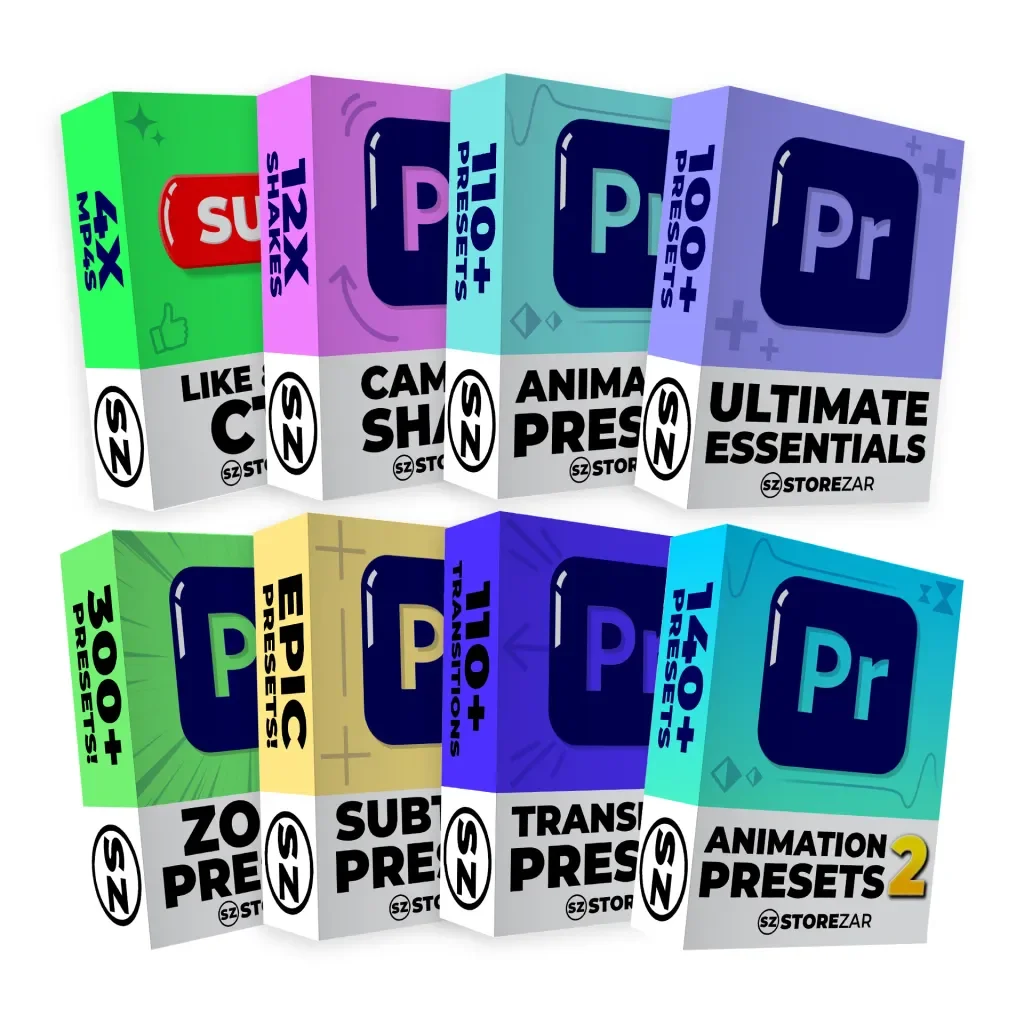
Our best-selling preset packs for Premiere Pro – all in one bundle. In The Ultimate Bundle MEGA you get EIGHT of our favourite packs at a discounted price – including both the Animations 2 and Zooms preset packs.
Includes EIGHT preset packs:
– Essential Presets
– Animation Presets
– Camera Shake Presets
– Like & Subscribe Call to Action
– Transitions Presets
– Subtitles Presets
+ Animations 2 Presets
+ Zooms Presets
Click on each link to find out more about specific packs. All preset packs are made by Finzar. These eight presets will help any beginner/intermediate YouTuber up their game and make their videos so much better.
These packs are made for Premiere Pro and will not work with other software.
A note on all presets: These packs are primarily for 1920x1080p projects, but you can use them on 4K projects, you may just have to adjust keyframes – these should scale automatically for 16:9 projects. Some of these presets require GPU acceleration. If your Premiere is a cracked version (especially lower than 2019), then they may not work entirely. As this is a digital product, returns are not accepted.
How to install presets:
Installing your presets is super easy.
or follow along with the below instructions:
- Download your presets from your confirmation email (they will be in a .zip file), and save them to a location convenient for you to access.
- Go to the location where you have saved the .zip file and double-click on the .zip.
- Once in the .zip file, you will see the terms of use and .PRFPSET file.
- Drag the .PRFPSET file out of the .zip folder into a new location. As long as it’s pulled out of the .zip file, this will unzip the preset.
- Open Premiere Pro and then head to the effects tab. If you can’t see the effects tab, click ‘Window’, then enable ‘Effects’.
- In the effects tab, right-click on the ‘presets’ section. You will see the option to ‘Import Presets’.
- Click ‘Import Presets’ and find the location where you unzipped your presets.
- Double click the .PRFPSET file and your import will be complete. You should now see your presets in the preset folder in Premiere Pro!